
Deleting an Outlook account isn’t just about emails. If you’re looking for how to delete an Outlook account, keep in mind that you are actually closing your Microsoft account, which impacts several Microsoft services.
What first steps should you take before permanently deleting your Outlook account, and how can you close your Outlook account securely?
Table of Contents
What Happens When You Delete an Outlook Account?
When you close your Microsoft account:
- You won’t be able to sign in to Microsoft services
- Access will be lost to:
- Outlook / Hotmail
- OneDrive
- Xbox
- Skype
- Office / Microsoft 365
- Microsoft Rewards
- Microsoft Certification
- All saved BitLocker recovery keys will be permanently deleted
- Your data will be removed after the recovery period ends
Note: This action affects all Microsoft services linked to your account, not just Outlook.
Before Delete Your Outlook Account Permanently
Microsoft wants to ensure two things:
- It’s really you closing the account
- You’re not leaving important data behind
Pre-Deletion Checklist
Before deleting your account, make sure you:
- Download important emails, files, and photos from OneDrive
- Cancel active subscriptions (Office 365, Xbox, etc.)
- Use remaining balances (Rewards points, Skype credit)
- Save BitLocker recovery keys
- Copy contacts your other or new email address
How to Delete an Outlook Account Short Process 2026
- Sign in to your Microsoft account
- Go to the account closure page
- Verify your identity
- Confirm the correct account
- Accept all warnings
- Choose 30 or 60 days recovery period
- Select a reason
- Click Mark account for closure
Read More: How to Delete Shift Browser
How to Delete an Outlook Account (Microsoft) – Step by Step Process 2026
Step 1: Sign In to Your Microsoft Account
- Visit the official Microsoft account closure page
- Sign in using your Outlook/Hotmail email and password
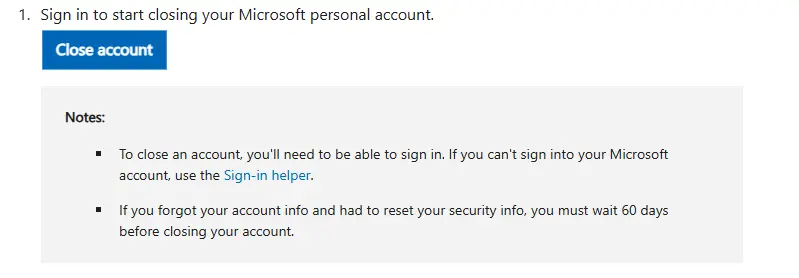
Note: If you can’t sign in, use the Sign-in Helper to recover access.
Step 2: Verify Your Identity
- Microsoft requires verification via email, phone, or a security code.
- Follow on-screen instructions to confirm it’s you
Step 3: Confirm the Correct Account
- Make sure the displayed email address is correct
- Click Next
Step 4: Read and Accept the Warnings
- Carefully read all listed points
- Tick all checkboxes to confirm you understand the consequences
Step 5: Choose Re-Open Window
Select how long Microsoft should keep your account before permanent deletion:
- 30 days or
- 60 days (recommended for safety)
Note: During this time, you can still recover your account by signing in again.
Step 6: Select a Reason
- Choose a reason for closing your outlook account from the dropdown menu
Step 7: Mark Account for Closure
- Click “Mark account for closure”
- Your Outlook account is now scheduled for deletion
Done, Your account will be permanently deleted after the selected recovery period.
Important things you should know before and after deleting your Outlook account.
- You must be able to sign in to close the account
- If you recently reset security info, you must wait 60 days
- Signing in again during the recovery period will re-activate your account
Deleting Data After Account Closure
According to the Microsoft Services Agreement. After the recovery period ends, all data and content are permanently deleted. This data cannot be recovered.
Need more help deleting your Outlook account?
If you’re facing issues:
- Use the Sign-in Helper if you can’t access your account
- Visit Contact Microsoft Support
- Enter your issue and select Get Help
- If needed, choose Contact Support to an agent support
Conclusion
Deleting your Outlook account is a major decision, as it affects your entire Microsoft ecosystem. Remember to backup your data before deleting your account and consider the consequences before making any decision.
FAQs: How to Delete an Outlook Account
-
Q. Can I recover my Outlook account after deletion?
Ans. Yes, within 30 or 60 days (based on your selected option).
-
Q. What happens to my data after deletion?
Ans. All data is permanently deleted after the recovery period.
-
Q. Can I delete only Outlook without deleting Microsoft account?
Ans. No, Outlook is part of your Microsoft account. Deleting Outlook deletes the entire account.
-
Q. What happens to OneDrive files after deletion?
Ans. All OneDrive data will be permanently deleted after the recovery period.
-
Q. Do I need my password to close Outlook account?
Ans. Yes, you must be able to sign in to close the account.